Shopify
Install the VerifyID app for Shopify and set up VerifyID Main, one pop-up and one checkout rule for MitID and BankID with your own languages and texts. Also covers the legacy MitID and BankID setup.
Comes with the app update. VerifyID Main and the "(legacy)" names on this page come with the next update of the VerifyID app for Shopify. Until your Shopify admin shows the app embed and the checkout rule called VerifyID Main, your shop shows the MitID and BankID setup as VerifyID MitID and VerifyID BankID. Keep using it. Nothing changes in your shop until you switch over yourself.
Overview
The VerifyID app for Shopify checks the age of shoppers who buy age-restricted products (alcohol, tobacco, nicotine, knives and similar) with MitID (Denmark) and Swedish BankID. The app has two setups: VerifyID Main and the legacy setup. Use one of them at a time.
| Setup | App embed (theme editor) | Checkout rule | Methods |
|---|---|---|---|
| VerifyID Main (for every new setup) | VerifyID Main | VerifyID Main | MitID, BankID or both |
| Legacy setup, MitID | VerifyID MitID (legacy) | VerifyID MitID (legacy) | MitID |
| Legacy setup, BankID | VerifyID BankID (legacy) | VerifyID BankID (legacy) | BankID |
The legacy setup keeps working for shops that use it (The legacy setup). VerifyID Main puts both methods in one place:
- One pop-up for both methods. When a cart needs a verification, the shopper sees the VerifyID card with a button per method: MitID first, then BankID.
- One checkout rule. Shopify's checkout refuses an order delivered to Denmark or Sweden until the shopper has verified the age the cart needs.
- Four languages. Danish, Swedish, English and Norwegian, with a small language switch in the corner of the card. You choose the first language and which languages the switch offers.
- Your own texts. Change every text of the pop-up, and the checkout message, per language.
- One settings screen. The settings of the checkout rule control both the rule and the pop-up.
| Item | Value |
|---|---|
| App | VerifyID - Age Verification in the Shopify App Store |
| Pop-up | App embed VerifyID Main, under Online Store › Themes › Customize › App embeds, or with the Switch on the pop-up button on the settings screen |
| Checkout rule and settings | VerifyID Main, under Settings › Checkout › Checkout rules |
| Ages | 16+, 18+, 19+, 20+, 21+, 23+, 25+, set with product tags such as 18+ or +18 (Age tags on products) |
| Languages | Danish, Swedish, English, Norwegian (Bokmål) |
The app calls the VerifyID API for you. You do not need the API endpoints from the other pages of these docs.
What you need
| Component | Requirement |
|---|---|
| Shopify plan | Basic or higher. Checkout rules from apps are not available on Shopify Starter. |
| VerifyID app | VerifyID - Age Verification installed on your store, in the version with VerifyID Main (the app update) |
| VerifyID | An active VerifyID subscription, which you start in your VerifyID dashboard right after the install (Install the app) |
| Theme | Your live theme, where you switch on the app embed under App embeds in the theme editor |
| Products | An age tag such as 18+ or +18 on every age-restricted product (Age tags on products) |
If your shop already uses the legacy setup, your VerifyID account, subscription and connection stay the same. You change nothing in the VerifyID dashboard to use VerifyID Main.
Install the app
Install from the Shopify App Store
In the Shopify App Store, open VerifyID - Age Verification and click Install. Approve the access the app asks for.
Subscribe
After the install, Shopify takes you to your VerifyID dashboard. Choose the language of the dashboard, enter a referral code if you have one, then click Subscribe and approve the subscription in Shopify. Every verification start is billed, also in a test and when the shopper cancels.
Continue with the setup
Add the checkout rule and switch on the pop-up (Set up VerifyID Main).
Installing the app changes nothing for your shoppers yet. The age check starts when you turn on the checkout rule and switch on the pop-up.
To open your VerifyID dashboard later, open Apps in your Shopify admin and click VerifyID - Age Verification.
Set up VerifyID Main
If your shop uses the legacy setup today, follow Move from the legacy setup to VerifyID Main instead, so that your shop is never without a check. The setup card in your VerifyID dashboard has buttons for the same steps (The VerifyID dashboard setup card).
Add the checkout rule
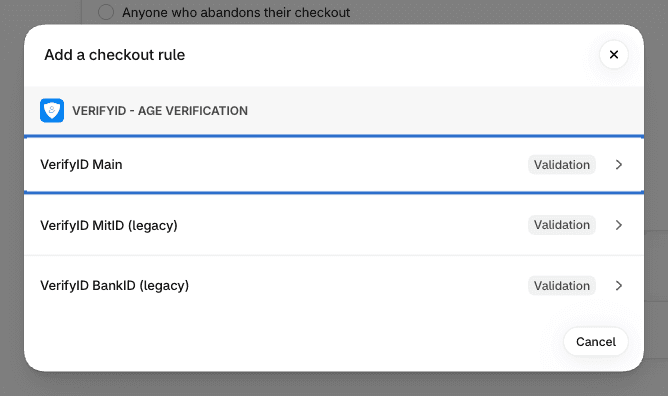
In the Shopify admin, open Settings › Checkout, scroll to Checkout rules and click Add rule. Choose VerifyID Main. Its settings screen opens. Give the rule a Title (required), for example "VerifyID Main".
Choose your settings
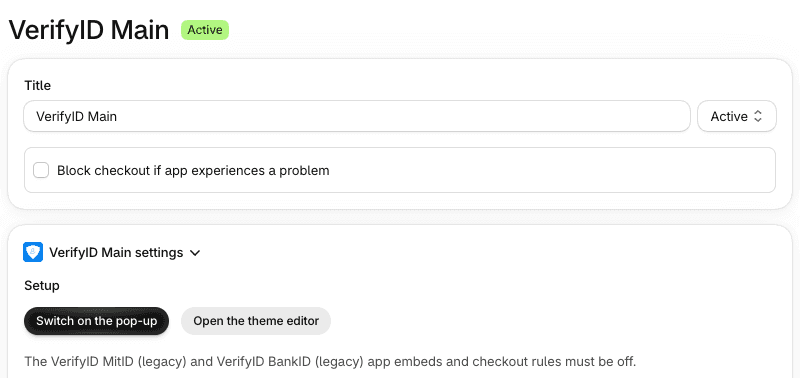
Under Verification methods, turn on MitID (Denmark), BankID (Sweden) or both. Under Pop-up languages, choose the First language and the Languages in the switch. Under Shoppers outside Denmark and Sweden, choose whether the pop-up shows the outside link. Under Texts, set your own texts and checkout message per language (Settings, Texts and languages). Click Save. The settings screen tells you when something is missing or too long.
Turn the rule on
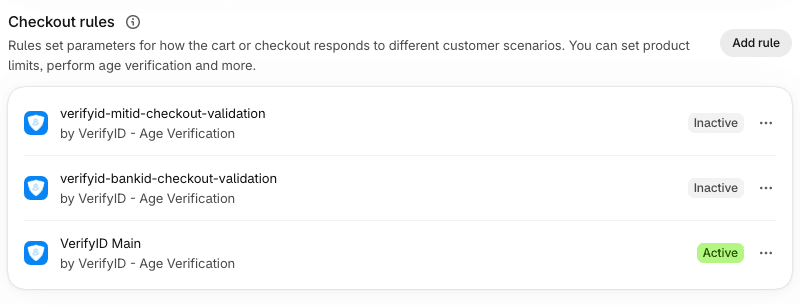
Back in Checkout rules, check that the VerifyID Main rule is turned on. If it shows as off, open it and turn it on.
Switch on the pop-up
Open the settings screen of the rule (click it by its title in Checkout rules). In the Setup box at the top, click Switch on the pop-up. The theme editor of your live theme opens in a new tab, on App embeds, with VerifyID Main switched on. Click Save in the theme editor. The pop-up is not on until you save.
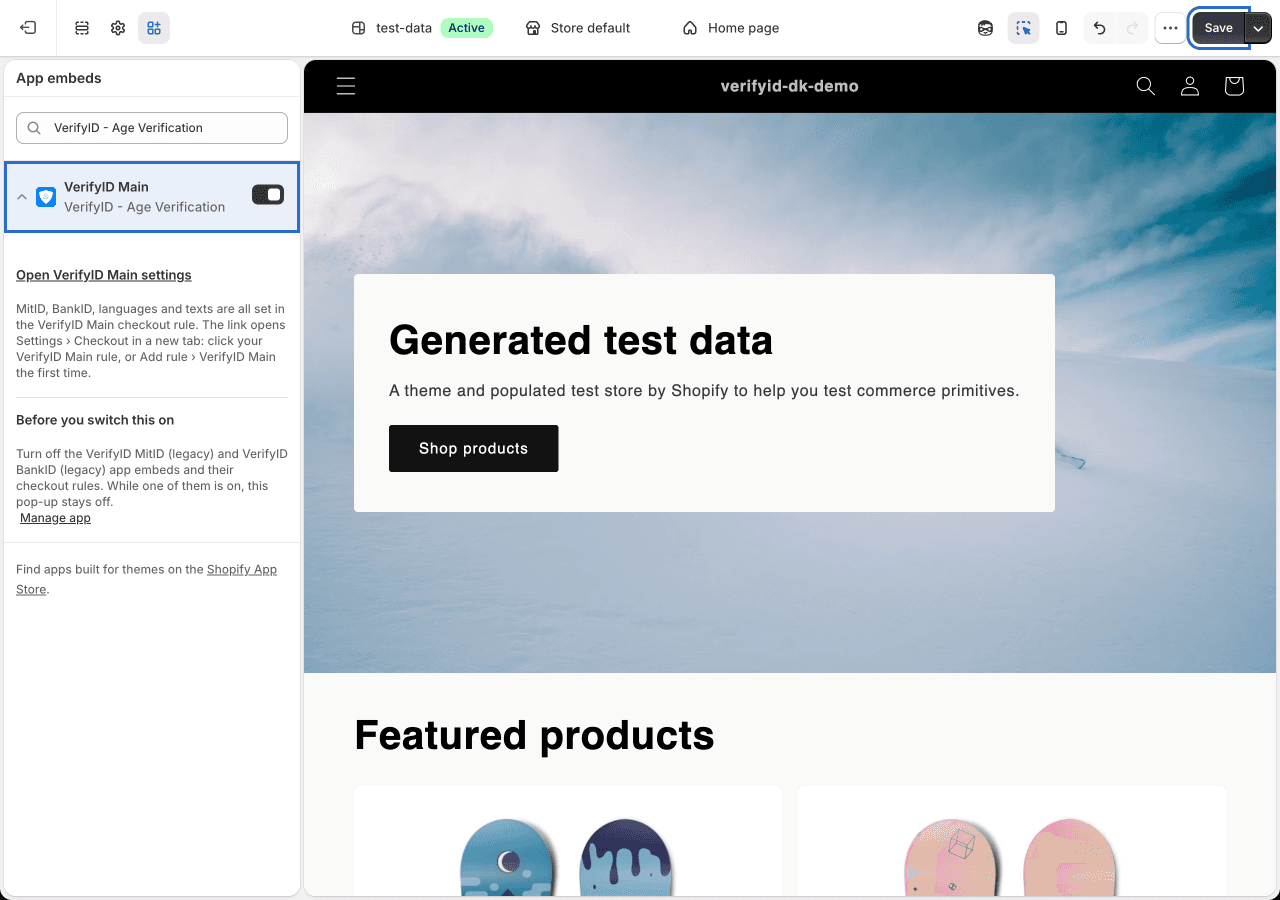
You can also do it by hand: open Online Store › Themes, click Customize on your live theme, then click App embeds in the left sidebar. Switch on VerifyID Main and click Save.
Tag your products
Give every age-restricted product an age tag such as 18+ or +18 (Age tags on products).
Try it as a shopper
Test the shop as a shopper (Test). Every verification start is billed, also in a test.
The Setup buttons
The settings screen of the rule starts with a Setup box. Its two buttons open the theme editor of your live theme in a new tab, so the settings screen stays open:
| Button | What it does |
|---|---|
| Switch on the pop-up | Opens App embeds with VerifyID Main switched on. Click Save in the theme editor. |
| Open the theme editor | Opens App embeds and changes nothing. Use it to switch off the VerifyID MitID (legacy) and VerifyID BankID (legacy) embeds, or to check that VerifyID Main is on. |
Under the buttons, a help line reminds you that the VerifyID MitID (legacy) and VerifyID BankID (legacy) app embeds and checkout rules must be off.

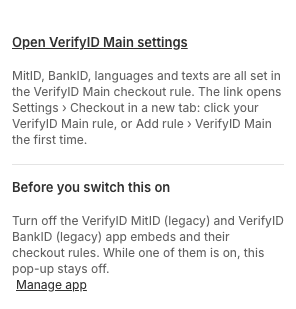
In the theme editor, the VerifyID Main app embed has no settings of its own. Its panel starts with the link Open VerifyID Main settings, which opens Settings › Checkout in a new tab: click your VerifyID Main rule there, or Add rule › VerifyID Main the first time. Below the link, Before you switch this on reminds you to turn off the legacy app embeds and their checkout rules.
Settings
Open the settings at any time under Settings › Checkout › Checkout rules: click the rule by the title you gave it. From the theme editor, use the Open VerifyID Main settings link in the VerifyID Main app embed. One Save stores the settings of both the checkout rule and the pop-up.
The screen has five sections: Setup (The Setup buttons), Verification methods, Pop-up languages, Shoppers outside Denmark and Sweden and Texts. The last four hold the settings:

| Section | Setting | Default | What it does |
|---|---|---|---|
| Verification methods | MitID (Denmark) | On | Shows the MitID button and checks orders delivered to Denmark. MitID proves 16+ and 18+ only, so carts with 19+ to 25+ products need BankID. |
| Verification methods | BankID (Sweden) | On | Shows the BankID button and checks orders delivered to Sweden. BankID proves every age from 16+ to 25+. |
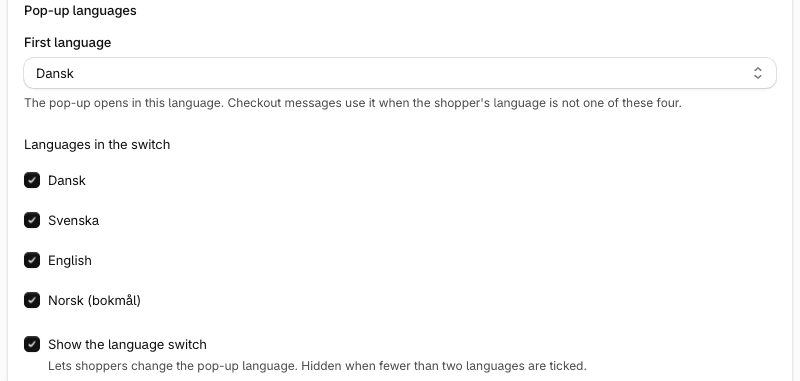
| Pop-up languages | First language | Dansk, or Svenska when only BankID is on (see below) | The language the pop-up opens in, listed first in the language switch. The checkout message also uses it when the shopper's checkout language is not Danish, Swedish, English or Norwegian. |
| Pop-up languages | Languages in the switch | Dansk, Svenska, English, Norsk (bokmål), all ticked | The languages the shopper can pick in the card. The first language must be ticked too. |
| Pop-up languages | Show the language switch | On | Lets shoppers change the pop-up language. The switch is hidden when it is off or when fewer than two languages are ticked; the card then uses the first language only. |
| Shoppers outside Denmark and Sweden | Show the "outside Denmark/Sweden" link in the pop-up | Off | Shows a link such as I'm a customer from outside Denmark and Sweden on the card (The outside link). |
| Texts | Checkout message | Empty (built-in text) | The message of the checkout rule, per language (Checkout messages). |
| Texts | The pop-up texts, from Verify card: title to Rejected: retry button | Empty (built-in texts) | The texts of the pop-up, per language (Texts per language). |
At least one method must be on, at least one language must be ticked, and the first language must be one of the ticked languages; otherwise the screen shows what to fix and saves nothing. Until you save the settings for the first time, the shop uses both methods and all four languages, with the switch on, the outside link off and the built-in texts; the pop-up then opens in the language of the storefront (Danish, Swedish or Norwegian, every other language English).
The outside link
With Show the "outside Denmark/Sweden" link in the pop-up on, the card shows a link under the buttons, also on the card that says the shop cannot verify the items. The link also shows with the setting off when the shopper is on a market outside the countries of the methods that are on, for example a German market, or a Danish market with only BankID on. A shopper who uses it goes on to the checkout without verifying. The checkout rule still checks every order delivered to Denmark (with MitID on) or Sweden (with BankID on), so the link only helps shoppers whose order is delivered to another country.

Texts and languages
The pop-up comes in Danish, Swedish, English and Norwegian (Bokmål). Choose the first language and the languages of the switch under Pop-up languages. Change the texts per language under Texts.
The language switch
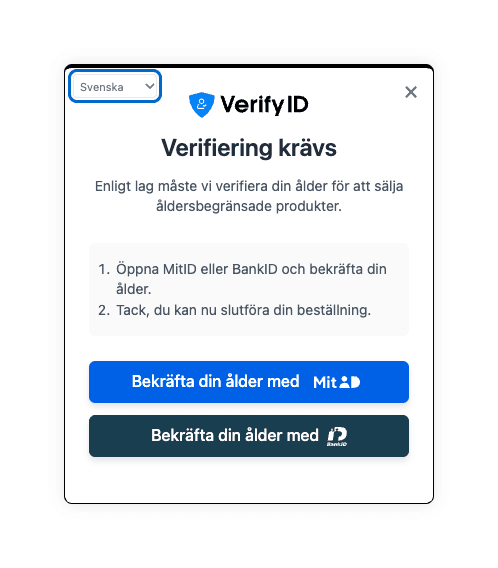
The card has a small language menu in its top-right corner (top-left when the card shows a close ×), with the languages you ticked: Dansk, Svenska, English and Norsk (bokmål).
- The card opens in your first language, and the menu lists it first. The other ticked languages follow in the order Dansk, Svenska, English, Norsk (bokmål). The language a shopper picks does not change this order.
- A choice changes the card's texts at once, without reloading the page, and is kept while the shopper stays in the same browser tab. It changes only the card, not the rest of the shop.
- Your own texts show in every language where you set them. The other fields use the built-in texts of that language.
| Setting | Default | Notes |
|---|---|---|
| Show the language switch | On | Off hides the menu; the card then uses the first language only |
| Languages in the switch | Dansk, Svenska, English, Norsk (bokmål), all ticked | The first language must be ticked too. With fewer than two languages ticked, the menu is hidden. |
First language before the first save
Before anything is saved, the settings screen preselects the First language from the methods:
| Methods on | Preselected first language |
|---|---|
| BankID only | Svenska |
| MitID and BankID, or MitID only | Dansk |
As long as nothing is saved and you have not picked a first language yourself, turning a method on or off updates the preselection the same way. Once you pick a first language yourself, or once the settings are saved, the screen never changes it by itself. The preselected language applies from your first Save; until then the pop-up opens in the language of the storefront, as described under Settings.
If the preselected language is not ticked under Languages in the switch, the screen does not tick it or pick another one: it shows The first language (…) must also be ticked in the language switch list. and saves nothing until you tick that language or choose another first language.
Texts per language
In the Texts section, pick a language with the buttons Dansk, Svenska, English or Norsk (bokmål). The fields below then belong to that language, and each field name ends with it, for example Verify card: title (Dansk). A language with an error shows (!) after its name. An empty field uses the built-in text of that language, so you only fill in what you want to change.
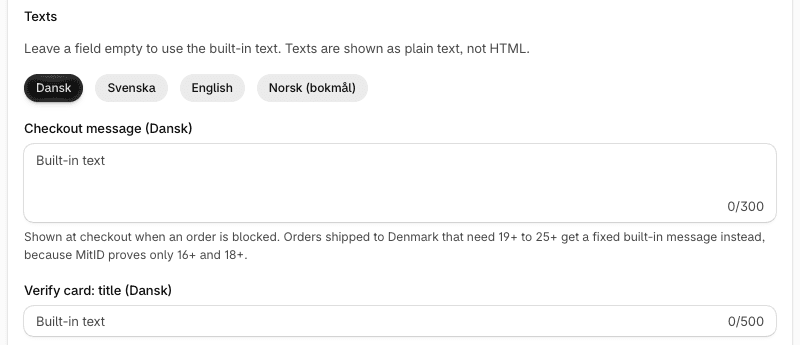
The first field is the Checkout message (Checkout messages). The pop-up texts follow:
| Field | Where it shows | Built-in English text |
|---|---|---|
| Verify card: title | The card, before the shopper verifies | Age verification required |
| Verify card: description | Under the title | By law, we must verify your age before we can sell you age-restricted products. |
| Verify card: step 1 | First numbered step | Open %method and confirm your age. |
| Verify card: step 2 | Second numbered step | Thank you, you can now complete your order. |
| Verify card: button | On each button, before the MitID or BankID logo | Verify your age with |
| Link for shoppers outside Denmark/Sweden | The outside link (The outside link) | I'm a customer from outside %countries |
| Verifying: title | While the result is checked after MitID or BankID | Verifying... |
| Verifying: description | Under that title | We follow all rules that prevent the sale of alcohol and tobacco to minors. |
| Rejected: title | When the shopper is under the age the cart needs | Verification rejected |
| Rejected: description | Under that title | You are under the age limit for some of the items in your cart. Please remove these items to continue your purchase. |
| Rejected: back button | Button back to the cart | Back to cart |
| Rejected: retry button | Button to verify again | Try again with %method |
%methodin Verify card: step 1 is replaced by the methods on the card, for example MitID or BankID.%methodin Rejected: retry button is replaced by the MitID or BankID logo.%countriesin Link for shoppers outside Denmark/Sweden is replaced by Denmark, Sweden or both, following the methods that are on.- Texts are plain text, at most 500 characters each. HTML and links are shown as plain characters, never as HTML.
- A few short texts cannot be changed: the note that MitID can only verify 16+ and 18+, the message that the shop cannot verify a cart, and the messages shown when VerifyID cannot be reached.
Checkout messages
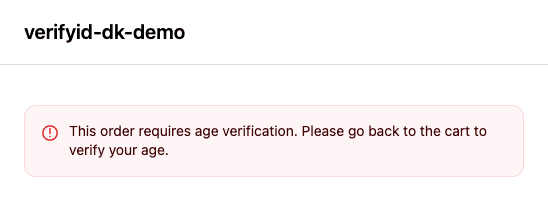
The Checkout message (one field per language in the Texts section, for example Checkout message (Dansk)) is the text Shopify's checkout shows when the checkout rule refuses an order. Set it per language, at most 300 characters. Your own message is shown as you wrote it. Empty uses the built-in text, in English: This order requires age verification. Please go back to the cart to verify your age.
The built-in message never asks for a method that does not fit the order's country: the built-in Danish text asks for MitID only on orders to Denmark, the built-in Swedish text asks for BankID only on orders to Sweden, and in every other case the built-in text asks for an age verification without naming a method. The fixed text for orders to Denmark above 18+ is described below.
The checkout shows the message in the shopper's checkout language when it is Danish, Swedish, English or Norwegian (Nynorsk gets Norwegian Bokmål). Otherwise it uses your first language, and without one, Danish for orders to Denmark and Swedish for orders to Sweden.
For an order delivered to Denmark that needs more than 18+, the checkout always shows a fixed built-in text instead, because MitID proves only 16+ and 18+. It says why, and it never asks for MitID. For a cart that needs 21+, in English:
| Methods on | Checkout text |
|---|---|
| MitID and BankID | MitID can only verify 16+ and 18+. This order requires 21+. Go back to the cart and verify your age with BankID, or remove the items. |
| MitID only | MitID can only verify 16+ and 18+. This order requires 21+. Remove the items from your cart to continue. |
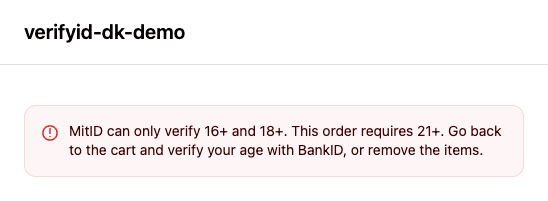
Your own checkout message is not used for these orders.
Age tags on products
You set the age of a product with a tag. There are seven ages: 16+, 18+, 19+, 20+, 21+, 23+, 25+. Each age has two spellings, for example 18+ or +18. Both spellings work for every age, in every setup. A product without an age tag needs no verification.
| Age | Tags (both spellings work) | MitID (Denmark) | BankID (Sweden) |
|---|---|---|---|
| 16 | 16+ or +16 | Yes | Yes |
| 18 | 18+ or +18 | Yes | Yes |
| 19 | 19+ or +19 | No, BankID only | Yes |
| 20 | 20+ or +20 | No, BankID only | Yes |
| 21 | 21+ or +21 | No, BankID only | Yes |
| 23 | 23+ or +23 | No, BankID only | Yes |
| 25 | 25+ or +25 | No, BankID only | Yes |
The tags each method can verify:
- MitID (Denmark), 4 tags:
16+,+16,18+,+18 - BankID (Sweden), all 14 tags:
16+,+16,18+,+18,19+,+19,20+,+20,21+,+21,23+,+23,25+,+25
In VerifyID Main, an order to Denmark that needs 19+ to 25+ must be verified with BankID. With BankID off, the shopper cannot complete such an order and is asked to remove the items (MitID and BankID).
-
One product: open Products, open the product and add the tag under Tags. The age applies to every variant of the product.
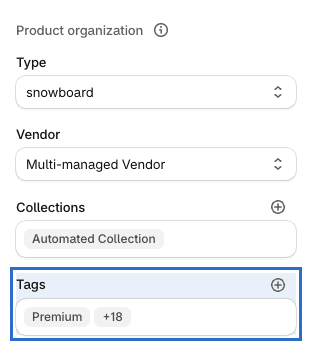
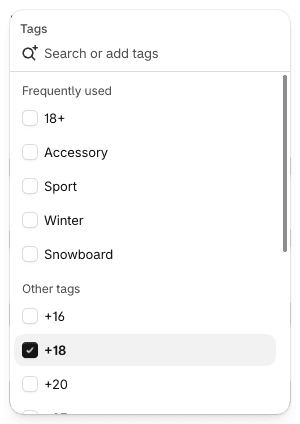
Click the Tags field, tick the age tag in the list or type it in the search box, then click Save.
-
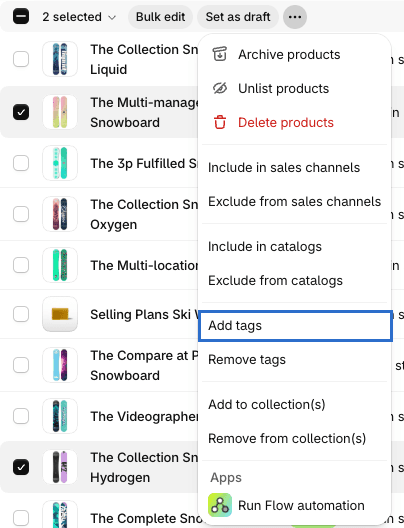
Many products: in the Products list, select the products and choose Add tags in the bulk actions.
-
The cart: the highest age of all products in the cart counts. A beer tagged
18+and a whisky tagged+21in one cart need 21+.
A tag counts only when it is exactly one of the 14 tags above. A product with only other tags needs no verification:
| Tag | Age |
|---|---|
18+ | 18 |
+18 | 18 |
+21 | 21 |
25+ | 25 |
Alcohol 18+ | none (other words in the tag) |
18 | none (no +) |
18 + | none (space before the +) |
17+ | none (not one of the seven ages) |
22+ | none (not one of the seven ages) |
Legacy MitID setup: the VerifyID MitID (legacy) pop-up and checkout rule check the tags 19+ to 25+ (both spellings) as 18+, so a MitID 18+ verification is enough there. The legacy BankID setup checks every age exactly.
If your shop used the legacy setup, keep your tags as they are. VerifyID Main reads the same tags, but checks 19+ to 25+ exactly, so orders to Denmark with these products need BankID.
MitID and BankID
| Cart needs | MitID | BankID |
|---|---|---|
| 16+ | Yes | Yes |
| 18+ | Yes | Yes |
| 19+, 20+, 21+, 23+, 25+ | No | Yes |
- MitID proves only 16+ and 18+. When the cart needs more than 18+, the card hides the MitID button and shows MitID can only verify 16+ and 18+. This order requires 21+. (with the cart's age) in the shopper's language. The shopper verifies with BankID instead.
- The checkout rule is just as strict. For an order delivered to Denmark it never accepts a MitID 18+ verification for a cart that needs 19+ or more. The checkout tells the shopper why and asks them to go back to the cart and verify with BankID, or to remove the items (with only MitID on: to remove the items). It never asks for MitID for these orders (Checkout messages).
- With only MitID on, a cart that needs more than 18+ cannot be verified: the card says the shop cannot verify these items and asks the shopper to remove them, and the checkout refuses such orders to Denmark and asks the shopper to remove the items. Turn on BankID or use 16+ and 18+ only.
- A verification counts only when the proven age is at least the cart's age. If the shopper later adds a product with a higher age, they verify again.
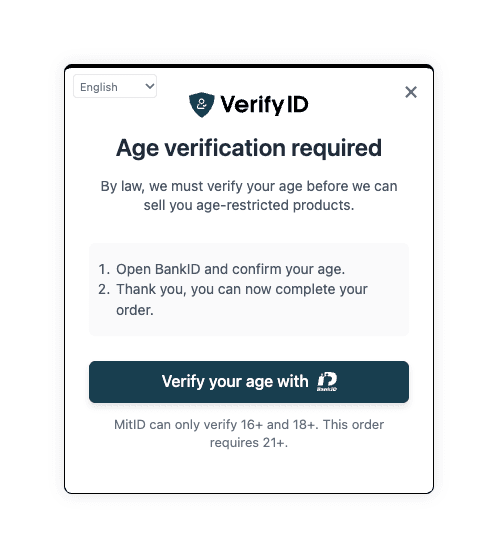
This is how VerifyID Main works. The legacy MitID setup checks 19+ to 25+ as 18+ (Age tags on products).
Which orders the checkout rule checks
The checkout rule looks at the country of the delivery address:
| Delivery country | Checked when |
|---|---|
| Denmark | MitID is on |
| Sweden | BankID is on |
| Any other country | Never |
With only BankID on, orders delivered to Denmark are not checked by the rule. With only MitID on, orders delivered to Sweden are not checked. An order without a delivery address is not checked either. Turn on both methods if you deliver age-restricted products to both countries.
The rule runs in Shopify's checkout, not in the theme, so it also covers orders that reach the checkout another way, for example from a direct link.
What shoppers see
When a shopper with an age-tagged product in the cart clicks a checkout button, the VerifyID card opens on top of the page: the VerifyID logo, a title, a short text, two numbered steps and one full-width button per method, MitID first, then BankID, and a small language menu (The language switch). It is the card of the other VerifyID plugins. A cart without age-tagged products shows no pop-up, and nothing is sent to VerifyID.
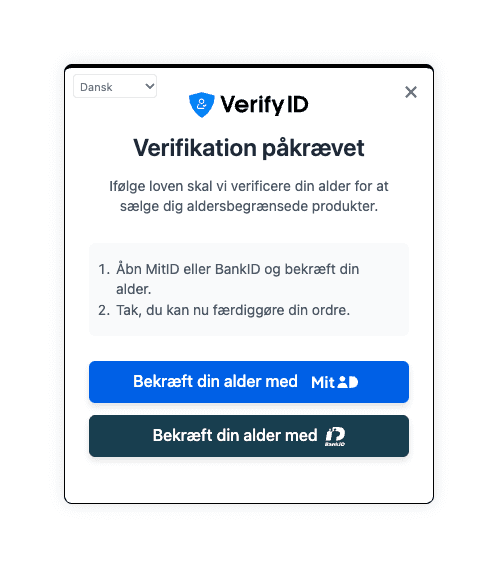
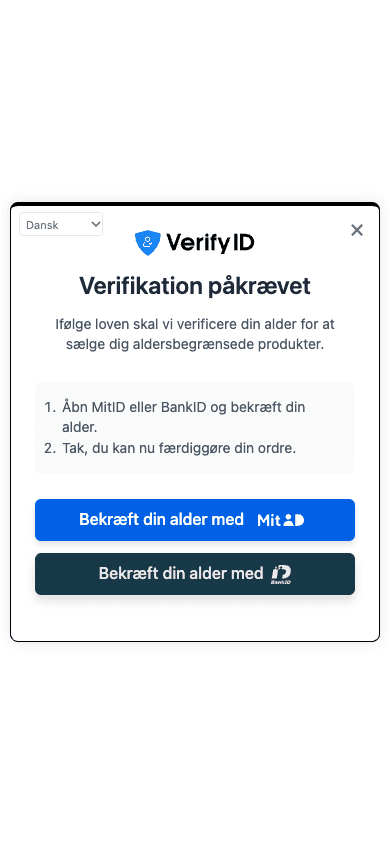
The express and Buy it now buttons (Shop Pay, Apple Pay, Google Pay, PayPal and similar) are hidden, because they would go to the checkout without the pop-up. The checkout rule checks those orders either way.
Buttons
| Methods on | Cart needs 16+ or 18+ | Cart needs 19+ to 25+ |
|---|---|---|
| MitID and BankID | MitID and BankID, MitID first | BankID only, with the line that MitID can only verify 16+ and 18+ |
| MitID only | MitID | No button: the card says the shop cannot verify these items |
| BankID only | BankID | BankID |
The shopper's country never hides a button. It only matters for the checkout rule.
After the click
- The shopper clicks a button and logs in with MitID or BankID.
- They come back to the shop. The card shows Verifying... while the result is checked, and then the shopper goes on to the checkout.
- If they are under the age the cart needs, the card shows Verification rejected with Back to cart and Try again with MitID or BankID.
- If VerifyID cannot be reached for a moment, the card asks the shopper to try again. Trying again checks the same verification. It does not start a new one.
One click, one verification
Each click on a MitID or BankID button starts one verification, and VerifyID bills every started verification, also when the shopper cancels. While a start runs, the buttons are disabled, so a double click cannot start two. Opening the card and switching its language start nothing.
How long a verification lasts
A verification is valid for 30 minutes from the moment the shopper verifies. Within those 30 minutes the shopper can go back to the cart and click the checkout button again without verifying again. After 30 minutes, the pop-up asks for a new verification at the next checkout click, and that is a new billed start. The 30 minutes are checked when the shopper goes to the checkout, so a shopper who is already at the checkout can finish the order. This applies to VerifyID Main and to the legacy setup.
If you add the optional order webhook, a verification also stops working once an order has been placed with it.
At the checkout
If an order delivered to a checked country reaches the checkout without a valid verification for the cart's age, Shopify's checkout shows the checkout message and the order cannot be placed. The shopper goes back to the cart and verifies there.
Test
Every verification start is billed, also in a test. Use a private browser window.
- A product without an age tag: add it to the cart and click the checkout button. No pop-up opens.
- A product tagged
18+or+18: the card opens with a button per method. Verify, come back and go on to the checkout. - A product tagged
21+or+21: with both methods on, the card shows only BankID, with the line that MitID can only verify 16+ and 18+. - The checkout rule: in a new private window, add a tagged product to the cart, then type your shop's address followed by
/checkoutinto the address bar instead of clicking the checkout button. Enter a delivery address in Denmark or Sweden. The checkout shows your checkout message (for a cart that needs more than 18+ delivered to Denmark, the fixed text described under Checkout messages) and the order cannot be placed. - Languages: check that the language menu lists your first language first, switch the language in the card and check your own texts.
Remove any test tags and cancel or refund test orders afterwards.
Move from the legacy setup to VerifyID Main
Turn off both the legacy app embed and the legacy checkout rule. While VerifyID MitID (legacy) or VerifyID BankID (legacy) is switched on in the theme editor, the VerifyID Main pop-up stays off, so that shoppers never see two pop-ups (the theme editor shows a short notice about it). While a legacy checkout rule is on, shoppers may see two messages at checkout, and the legacy rule keeps its own limits.
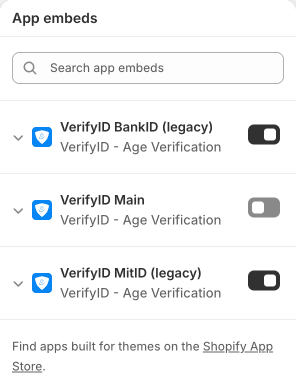
Do the steps in this order, in one session, so your shop is never without a check:
- Add and set up the new rule. In Settings › Checkout › Checkout rules, add VerifyID Main, choose your settings, save and turn it on. For these few minutes both rules run, so a shopper may see two messages.
- Swap the pop-up. On the settings screen of VerifyID Main, click Switch on the pop-up. The theme editor opens on App embeds with VerifyID Main switched on. In the same list, switch off VerifyID MitID (legacy) and VerifyID BankID (legacy), and click Save once. If VerifyID Main is on already, click Open the theme editor instead and switch off the legacy embeds there. Without the buttons, use Online Store › Themes › Customize › App embeds.
- Turn off the legacy rules. In Checkout rules, turn off VerifyID MitID (legacy) and VerifyID BankID (legacy), whichever your shop has. A rule that was added before the app update may still show its earlier name,
verifyid-mitid-checkout-validationorverifyid-bankid-checkout-validation. - Test the shop (Test).
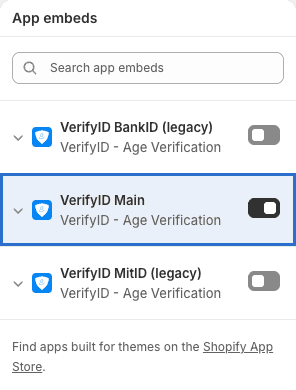
The setup card in your VerifyID dashboard has a button for each of these steps (The VerifyID dashboard setup card). Your product tags, your VerifyID account and your subscription stay as they are.
If you move from the legacy MitID setup and have products tagged 19+ to 25+, keep BankID on. VerifyID Main checks these ages exactly, and MitID cannot verify them (Age tags on products).
To go back, do the same in reverse: turn the legacy rule on, swap the embeds back (Open the theme editor on the settings screen takes you to App embeds), then turn the VerifyID Main rule off.
The legacy setup
The legacy setup is the MitID-only and BankID-only setup that shops used before VerifyID Main. It still works, and nothing is removed: a shop that uses it can keep it. New shops use VerifyID Main.
| Part | MitID | BankID |
|---|---|---|
| App embed | VerifyID MitID (legacy) | VerifyID BankID (legacy) |
| Checkout rule | VerifyID MitID (legacy) | VerifyID BankID (legacy) |
| Checks orders delivered to | Denmark | Sweden |
| Setting in the app embed | Enable "Not From Denmark?" | Enable "Not From Sweden?" |
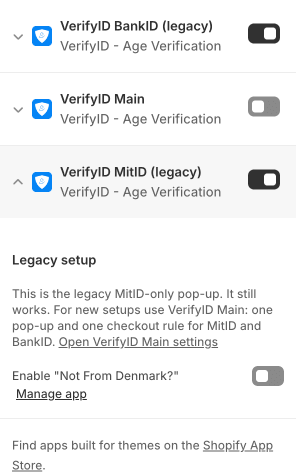
- In the theme editor, the panel of each legacy app embed starts with a Legacy setup heading and the text This is the legacy MitID-only pop-up. It still works. For new setups use VerifyID Main: one pop-up and one checkout rule for MitID and BankID. (BankID likewise), followed by the link Open VerifyID Main settings.
- The one setting of each legacy embed shows or hides the link for shoppers from outside Denmark (MitID) or Sweden (BankID) in the legacy pop-up.
- Both legacy setups read the same tags as VerifyID Main, in both spellings. The legacy BankID setup checks every age exactly. The legacy MitID setup checks
19+to25+as 18+ (Age tags on products). - Before the app update, the legacy embeds are called VerifyID MitID and VerifyID BankID, and their checkout rules show as
verifyid-mitid-checkout-validationandverifyid-bankid-checkout-validation. - Use the legacy setup or VerifyID Main, never both. To move, follow Move from the legacy setup to VerifyID Main.
The VerifyID dashboard setup card
Your VerifyID dashboard (open Apps in your Shopify admin and click VerifyID - Age Verification) shows a Set up VerifyID Main on Shopify card on its home page, with three buttons. Each one opens your Shopify admin in a new tab.
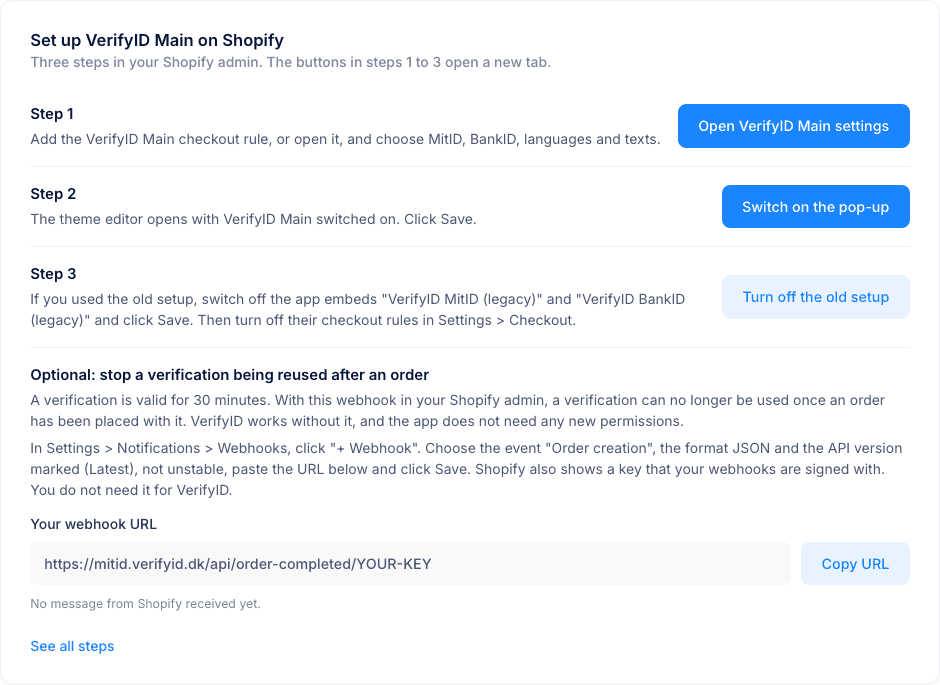
| Step | Button | What it opens |
|---|---|---|
| 1 | Open VerifyID Main settings | Settings › Checkout. Add the VerifyID Main rule, or open it, and choose your settings. |
| 2 | Switch on the pop-up | The theme editor with VerifyID Main switched on. Click Save. |
| 3 | Turn off the old setup | App embeds in the theme editor. If your shop used the legacy setup, switch off VerifyID MitID (legacy) and VerifyID BankID (legacy) and click Save. Then turn off their checkout rules in Settings › Checkout. |
Below the three steps, the card has the optional order webhook step: your own webhook URL with a Copy URL button, and the time of the last message from Shopify (Optional order webhook).
When your dashboard is in Danish or Swedish, the card and its buttons are in that language, in the same order. The card comes with an update of the dashboard. If your dashboard does not show it yet, follow Set up VerifyID Main.
Optional order webhook
With this webhook, Shopify tells VerifyID when an order is placed, and the verification used for that order can no longer be used again, for example in another tab or in a cart that is opened again later. You add it yourself in your Shopify admin. It is optional: without it, a verification stays valid for its 30 minutes (How long a verification lasts).
The app does not get any new permissions for this. You send Shopify's order message to VerifyID yourself, and you can delete the webhook at any time.
Copy your webhook URL
Open your VerifyID dashboard (Apps in your Shopify admin, then VerifyID - Age Verification). The setup card shows Your webhook URL with a Copy URL button. The last step of the setup guide in the dashboard shows it too. The URL is https://mitid.verifyid.dk/api/order-completed/ followed by your plugin key.
Create the webhook
In your Shopify admin, open Settings › Notifications, click Webhooks and then + Webhook. The Add webhook form opens.
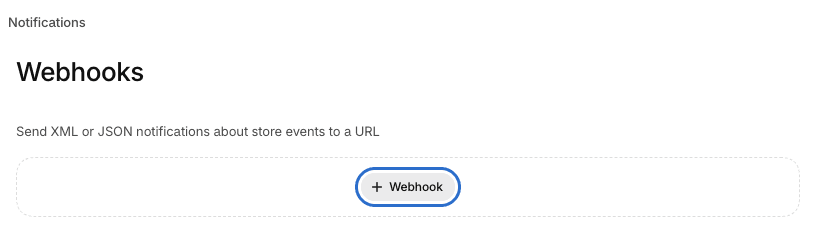
Fill in the form
Event: Order creation. Format: JSON. URL: paste your webhook URL. Webhook API version: the one marked (Latest), not unstable. Click Save.
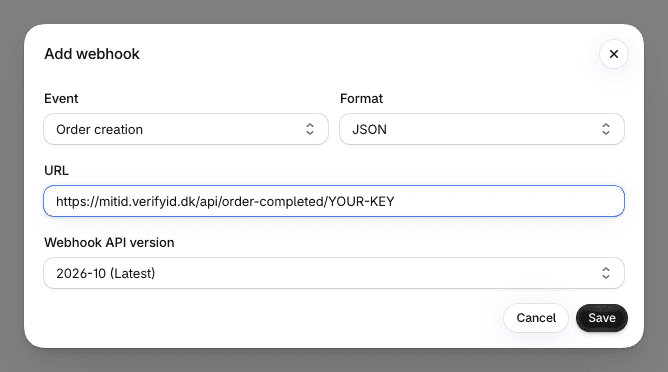
Check that it arrives
Click Send test next to the webhook. The setup card in your dashboard then shows Last message from Shopify received with the time (UTC). This step is optional.
At the bottom of the Webhooks page, Shopify also shows a key that your webhooks are signed with. You do not need it for VerifyID.
What the webhook does and does not do:
- VerifyID reads only the order's ID and the verification attached to the order. It does not store the customer's name, e-mail, phone or address.
- It does not stop the order that used the verification. It stops the same verification from being used for another order.
- Orders without a verification attached are ignored. That is normal for Shop Pay, Buy it now, Apple Pay and other express checkouts, and for POS and draft orders.
- To stop, delete the webhook under Settings › Notifications › Webhooks. If Shopify cannot deliver to the URL for several hours, it removes the webhook by itself. If it is gone from the list, add it again.
Troubleshooting
| Symptom | Cause and fix |
|---|---|
| There is no VerifyID Main under Add rule or App embeds | Your app does not have the update yet. Keep using your current setup until VerifyID Main shows. |
| No pop-up appears | The VerifyID Main embed is off, or is on in a theme that is not the live one. Or no product in the cart has an exact age tag such as 18+ or +18 (Age tags on products). Click Switch on the pop-up on the settings screen, then Save in the theme editor. |
| No pop-up, and the theme editor shows a VerifyID notice | The VerifyID MitID (legacy) or VerifyID BankID (legacy) embed is still on. Click Open the theme editor on the settings screen, switch it off and click Save. |
| Switch on the pop-up opened the theme editor, but there is still no pop-up | The change was not saved. Click Save in the theme editor. |
| Shoppers see two messages at checkout | A legacy VerifyID checkout rule is still on. Turn it off. |
| The panel of a VerifyID app embed says Legacy setup | That embed belongs to the legacy setup. It still works. To move, see Move from the legacy setup to VerifyID Main. |
| The card shows only the BankID button | The cart needs 19+ or more, which MitID cannot prove. This is expected. |
| The card says the shop cannot verify the items | The cart needs more than 18+ and only MitID is on. Turn on BankID. |
| The card has no language menu | Show the language switch is off, or fewer than two languages are ticked under Languages in the switch. |
| The pop-up opens for a product without an age tag | Another product in the cart has a tag, or the pop-up could not read a product for a moment and treated it as 18+ to be safe. |
| An order to Denmark or Sweden went through without a verification | The method of that country is off, the VerifyID Main rule is off, or the order had no delivery address. Check Checkout rules and the settings. |
| My own text does not show | It was saved for another language, or the field is empty. In the Texts section, pick the language with its button and check. |
| The settings screen says Only partly saved or Pop-up settings could not be loaded | Only the checkout rule settings were saved; the pop-up settings could not be loaded or saved. Reload the page and click Save again. |
| The setup card is not on my VerifyID dashboard | The card comes with an update of the dashboard. Until then, follow Set up VerifyID Main. |
| A shopper had to verify again | A verification is valid for 30 minutes (How long a verification lasts). With the order webhook, it also ends when an order has been placed with it. After that, the pop-up asks for a new verification. This is expected. |
| The dashboard says No message from Shopify received yet | The order webhook is not added yet, or its URL, event or format is wrong. Check it under Settings › Notifications › Webhooks and click Send test (Optional order webhook). |
Switching off
Switch off the VerifyID Main embed in the theme editor (Open the theme editor on the settings screen takes you to App embeds) and click Save. Then turn off the rule in Checkout rules. From then on, the shop has no age check.
FAQ
Do I have to move to VerifyID Main? No. The legacy setup keeps working unchanged. VerifyID Main is the setup for new shops, and for shops that want both methods, more languages or their own texts.
Why do my VerifyID embeds and rules say "(legacy)"? Since the app update, the MitID-only and BankID-only setup is called the legacy setup. Only the names changed. It works as before.
Can I run VerifyID Main next to the legacy setup? No. Use one setup at a time. Turn off the legacy embeds and the legacy checkout rules when you switch (Move from the legacy setup to VerifyID Main).
Do I need to change anything in my VerifyID account? No. VerifyID Main uses the same VerifyID connection and subscription.
Why is MitID not offered for a 21+ product? MitID can only prove 16+ and 18+. For 19+ to 25+ only BankID can prove the age, and the shopper is told so in the card and at checkout.
Can a Danish shopper buy a 21+ product? Yes, when they verify with BankID. In VerifyID Main, a shopper without BankID cannot verify a cart that needs more than 18+.
Can I write +18 instead of 18+?
Yes. Both spellings work for every age, in VerifyID Main and in the legacy setup. The tag must be exactly 18+ or +18, without other words or spaces (Age tags on products).
What about shoppers outside Denmark and Sweden? The checkout rule only checks orders delivered to Denmark (MitID on) and Sweden (BankID on). The pop-up still offers the verification to every shopper with age-tagged products. Turn on the outside link to let shoppers who order to other countries go on without verifying.
Does the language switch change the language of my shop? No. It changes only the card.
Can I use HTML or links in my texts? No. Texts are shown as plain text.
What happens if I leave a text empty? The built-in text of that language is used.
How long is a verification valid? 30 minutes from the moment the shopper verifies. Within that time the shopper can go back to the cart and on to the checkout again without a new verification (How long a verification lasts).
Do I need the order webhook? No. It is optional and needs no new permissions for the app. It makes sure a verification cannot be used again after an order (Optional order webhook).
Is every click billed? Every click on a MitID or BankID button starts one verification, and every start is billed, also when the shopper cancels. Opening the card and switching the language are free.
I use more than one theme. What do I do? App embeds are switched on per theme. When you publish another theme, switch on VerifyID Main in that theme too, and switch off the legacy VerifyID embeds there. The buttons on the settings screen always open your live theme.